
How do I create a CSV/XLSX file for bulk adding old reviews to my review stream?
- Bulk add old reviews or testimonials to your review stream by creating a CSV for upload
You can upload multiple old testimonials at once for inclusion in your review stream. This is a good option if you have a collection of old written or recorded reviews from customers, or if you previously had a simple 'Testimonials' page on your website.
To bulk upload multiple reviews at once, you must first create a CSV or XLSX spreadsheet file. Please be sure to follow the formatting guidelines outlined in this article.
Most popular spreadsheet software allows you to create and save CSV files, including:
- Microsoft Excel
- OpenOffice
- Google Sheets
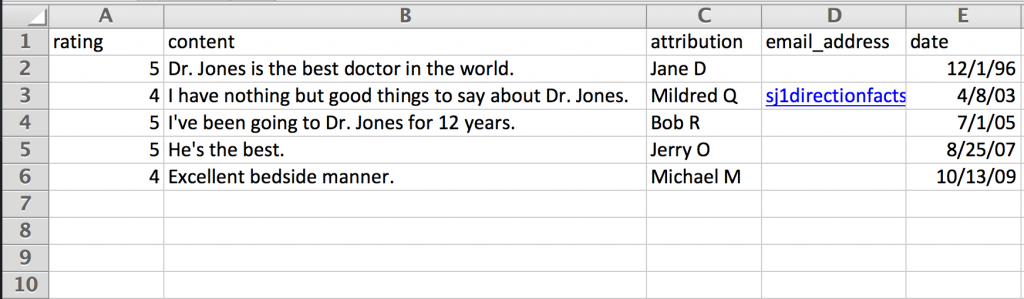
Headers
Make sure you have the following headers in row 1 of your spreadsheet, exactly as written with no spaces or additional characters:
- rating
- content
- attribution
- email_address
- date
Field Content
Let's discuss the content of each field:
- rating: The numerical or 'star' rating you choose to give each review. You can set ratings on 5-, 10-, or 100-point scale.
- content: The text content of the review. This field accepts limited HTML.
- attribution: Who wrote the review (e.g. "Bob Smith", "Linda N.", "Anonymous")
- email_address: The email address associated with the review. Note that while you can leave an entry blank for this field, you must still create the header and column for it.
- date: The date attributed to the review. Use the MM/DD/YYYY format.
Saving
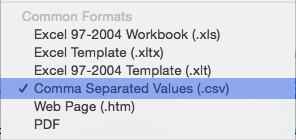
Be sure to save your file as a .CSV or .XLSX.
Because .CSV is not the default setting for most spreadsheet software, you'll need to choose the .CSV format when saving your file.
Once you've created a CSV or XLSX file of your old testimonials or feedback, you are ready to upload it into to your Reviews panel, where they will then be added to your review stream. To upload your file, navigate to Dashboard > Reviews > All Reviews. In the top right, click Upload CSV/XLSX.

In the panel that appears, select your file to upload by clicking the Browse button. Select the rating scale you'd like to use: 5, 10, or 100 points.

Click upload to finish. Your new reviews will appear in your reviews list (and stream) according to their date.
Note: Your review stream cache is updated every 1-2 hours, meaning it can take that long for changes and additions to appear. Please allow 1-2 hours for your new reviews to appear.